


AVOV TV boxes represent a powerful solution for streaming IPTV content in Canada. Configuring IPTV on these devices requires specific steps to ensure optimal performance and access to your subscription channels. This comprehensive guide will walk you through the entire configuration process for AVOV TV boxes, from initial setup to advanced customization options.
For many Canadians looking to enhance their viewing experience, iptv canada services offer an excellent alternative to traditional cable. AVOV TV boxes are particularly popular due to their reliability, user-friendly interface, and robust feature set designed specifically for IPTV streaming. The following guide covers everything you need to know about configuring these devices properly.
Foundational Knowledge About AVOV TV Boxes
AVOV TV boxes are set-top devices that run on the Android operating system, specifically optimized for IPTV streaming. These boxes connect to your television via HDMI and to the internet through either Wi-Fi or Ethernet cable, providing access to streaming content including live TV channels, movies, and series through IPTV services.
The AVOV lineup includes several models with varying specifications, such as the AVOV TVonline, AVOV TVonline Pro, and AVOV N2. Each model offers different processing power, memory configurations, and connectivity options, but the basic IPTV configuration process remains similar across the product line.
Before beginning the configuration process, ensure you have an active IPTV subscription from a provider that supplies the necessary credentials: typically a server URL (sometimes called a portal URL), username, and password. Without these details, you won’t be able to access any content through your AVOV box.
It’s also worth noting that AVOV boxes use either Stalker Middleware or MAC address-based authentication systems for IPTV service connectivity. Your IPTV provider will specify which system their service utilizes, and the configuration process differs slightly between these two authentication methods.
Key Features and Benefits of AVOV for IPTV
AVOV TV boxes come with several key features that make them excellent choices for IPTV streaming in the Canadian market. Understanding these benefits helps appreciate why proper configuration is essential to maximize your experience.
The primary advantage of AVOV boxes is their dedicated IPTV focus. Unlike general-purpose Android TV boxes, AVOV devices are specifically designed with IPTV in mind. This means their user interface, remote controls, and internal software are all optimized for navigating live TV channels and on-demand content.
Another significant benefit is the dual-mode compatibility. AVOV devices support both Stalker Middleware portal-based authentication and MAC address-based systems, making them versatile enough to work with virtually any IPTV provider in Canada. This flexibility isn’t common among all IPTV boxes.
AVOV boxes also feature powerful hardware specifications, including quad-core processors in most models, which ensures smooth playback of high-definition content without buffering. Their specialized EPG (Electronic Program Guide) interface allows for easy channel navigation and program information browsing.
For those concerned about legal streaming, AVOV boxes support legitimate IPTV services and applications, allowing Canadians to access properly licensed content alongside any private IPTV subscriptions they might have. The devices also receive regular firmware updates to maintain security and compatibility with evolving IPTV protocols.
Detailed Guide to Configure IPTV on AVOV TV
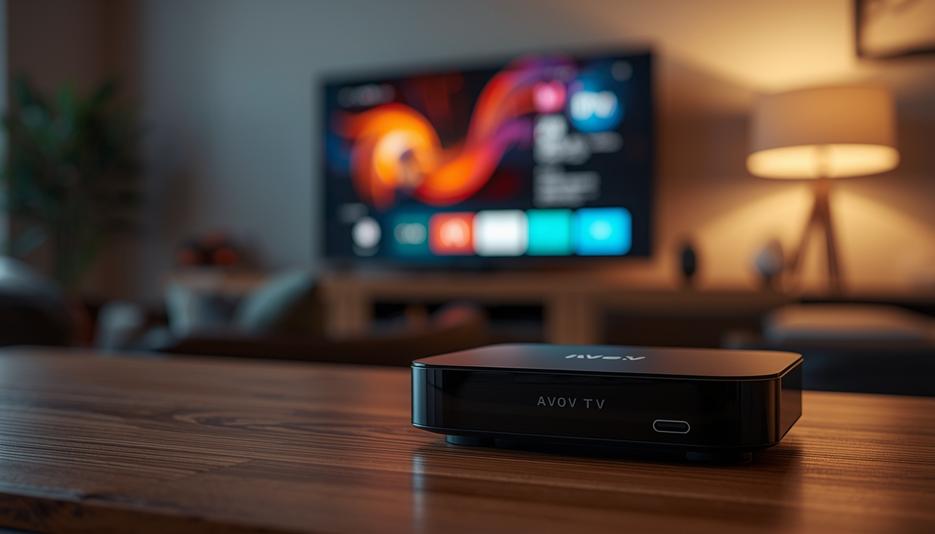
The configuration process for IPTV on AVOV TV boxes follows a systematic approach. This section provides step-by-step instructions to properly set up your device for optimal streaming performance.
First, power on your AVOV box and complete the initial setup process, including connecting to your home Wi-Fi network or Ethernet. For best streaming performance, a wired Ethernet connection is recommended whenever possible, as it provides more stable bandwidth than wireless connections.
Navigate to the main menu of your AVOV box using the remote control. Look for the settings icon or section, typically represented by a gear symbol. Within settings, you’ll find different configuration options for your device, including network settings, display settings, and IPTV portal configuration.
For Stalker Portal configuration:
1. From the main menu, select “Settings”
2. Navigate to “Portal Settings” or “IPTV Configuration”
3. Select “New Portal” or “Add Portal”
4. Enter the portal URL provided by your IPTV service
5. Input your username and password credentials
6. Save the configuration
7. Return to the main menu and select “Portal” or “IPTV” to access your channels
For MAC-based IPTV configuration:
1. Navigate to “Settings” from the main menu
2. Select “Network Settings” or “MAC Configuration”
3. Choose “MAC IPTV Setup”
4. Enter the server URL provided by your IPTV service
5. Input the MAC address given by your provider (this is different from your device’s physical MAC address)
6. Save the configuration
7. Restart the device when prompted
8. Access your content through the “Live TV” or “IPTV” section on the main menu
After configuration, take time to customize the user interface based on your preferences. AVOV boxes allow for channel grouping, favorites creation, and EPG customization. Organize your channels into categories that make sense for your viewing habits to enhance navigation efficiency.
Advanced Tips for AVOV IPTV Configuration
Beyond basic configuration, AVOV TV boxes offer several advanced features that can significantly enhance your IPTV experience. These optimizations can improve performance, customize your viewing experience, and provide additional functionality.
One powerful feature is the ability to configure multiple IPTV portals on a single device. This allows you to switch between different service providers without reconfiguring your box each time. To set up multiple portals:
1. Follow the same portal setup process for each additional service
2. Assign different portal numbers (Portal 1, Portal 2, etc.)
3. Use the portal selection option on the main menu to switch between services
For optimal streaming performance, adjust the buffer settings on your AVOV device:
1. Navigate to “Settings” > “System Settings” > “Player Configuration”
2. Increase the buffer size for slower connections (3000-5000ms recommended)
3. For faster connections, a smaller buffer (1000-2000ms) provides quicker channel switching
AVOV boxes also support external storage expansion. Connect a USB drive to store recordings of live TV programs:
1. Insert a formatted USB drive into an available port
2. Navigate to “Settings” > “Storage” > “Format external device” (if needed)
3. Enable the recording feature in “DVR Settings”
4. Configure recording parameters like quality and default save location
Take advantage of parental controls to restrict access to certain content:
1. Go to “Settings” > “Parental Control”
2. Set up a PIN code
3. Configure content restrictions based on ratings or specific channels
4. Apply time restrictions if desired
For users with specialized needs, AVOV boxes support custom DNS server configuration, which can improve streaming performance with certain providers:
1. Navigate to “Network Settings” > “Advanced Network”
2. Select “Custom DNS”
3. Enter the primary and secondary DNS server addresses recommended by your provider
Troubleshooting Common IPTV Issues on AVOV Devices
Even with proper configuration, you may occasionally encounter issues with your AVOV TV box. This section addresses common problems and their solutions to ensure minimal disruption to your IPTV viewing experience.
If you experience buffering or freezing during playback, try these solutions:
1. Check your internet connection speed (minimum 10 Mbps recommended for HD content)
2. Close any other applications running on the AVOV box
3. Increase buffer size in player settings
4. Switch from Wi-Fi to Ethernet connection if possible
5. Restart your router and AVOV device
For authentication issues or “Invalid Portal” errors:
1. Verify your credentials are entered correctly (URL, username, password)
2. Check that your subscription is active with your provider
3. Try using an alternative portal URL if your provider offers one
4. Clear the portal cache through “Settings” > “Applications” > “Clear Data”
5. Factory reset the device as a last resort, noting that this will erase all settings
If channels are missing or not loading:
1. Refresh the portal by logging out and logging back in
2. Update the channel list through “Portal Settings” > “Update Portal”
3. Contact your IPTV provider to confirm channel availability
4. Check for AVOV firmware updates through “Settings” > “Device” > “Update”
For EPG (Electronic Program Guide) issues:
1. Verify EPG is included with your subscription
2. Force EPG update through “Settings” > “EPG” > “Update Now”
3. Set automatic EPG updates to occur daily
4. Try alternative EPG sources if your provider supports them
Audio/video sync problems can be addressed by:
1. Changing the video output resolution in “Display Settings”
2. Toggling between different audio output formats in “Audio Settings”
3. Using the built-in sync correction tools in “Player Settings”
4. Updating to the latest firmware version
Comparing AVOV with Other IPTV Box Solutions
When considering IPTV streaming options in Canada, it’s important to understand how AVOV boxes compare to alternatives. This knowledge helps contextualize the configuration process and determine if an AVOV device is the right choice for your needs.
AVOV boxes differ from general Android TV boxes primarily in their specialized IPTV-focused interface. While a standard Android box requires installing and configuring third-party IPTV applications, AVOV devices come with built-in IPTV clients that streamline the setup process and provide a more television-like experience.
Compared to MAG boxes, another popular IPTV-specific solution, AVOV devices offer more flexibility. MAG boxes primarily support Stalker Middleware systems, while AVOV supports both Stalker and MAC-based authentication. However, MAG devices are often praised for their stability and simplicity, though they lack the additional Android applications that AVOV boxes can run.
Formuler boxes represent another major competitor, with their powerful MyTVOnline interface specifically designed for IPTV. Formuler devices typically offer more powerful hardware than entry-level AVOV boxes, but come at a premium price point. The configuration process is similar between both brands.
IPTV services can also be accessed through smart TVs with built-in Android TV, but these lack the specialized interface and optimization of dedicated boxes like AVOV. The configuration process on smart TVs often involves installing additional apps and typically delivers a less streamlined experience.
For budget-conscious consumers, devices like Amazon Fire Sticks offer lower-cost IPTV streaming options, but require more technical knowledge to set up properly and may struggle with higher-bitrate streams that AVOV boxes handle with ease.
Frequently Asked Questions
Can I use AVOV TV boxes with any IPTV provider?
Yes, AVOV boxes support both Stalker Middleware and MAC-based authentication systems, making them compatible with virtually all IPTV providers in Canada. Always verify with your provider which authentication system they use before configuring your device.
Do I need a VPN with my AVOV box?
While not strictly necessary, many users choose to configure a VPN on their AVOV device for enhanced privacy and potentially better access to geo-restricted content. AVOV boxes support most major VPN services through their app store.
Can multiple IPTV subscriptions be used on one AVOV box?
Yes, AVOV devices allow configuration of multiple IPTV portals, which can be selected from the main menu. This feature is useful for households with subscriptions to different services or for those who want backup options.
How often should I update my AVOV firmware?
Check for firmware updates monthly. AVOV typically releases updates quarterly, which often include important security patches, performance improvements, and new features. Updates can be installed through the Settings menu.
What should I do if my AVOV box becomes unresponsive?
For temporary freezes, perform a soft reset by unplugging the power cable, waiting 30 seconds, and plugging it back in. If problems persist, you may need to perform a factory reset through the settings menu, though this will erase all your configured settings.
Conclusion
Configuring IPTV on AVOV TV boxes requires following specific steps based on your provider’s authentication system, but the process is straightforward when approached systematically. The specialized nature of these devices makes them particularly well-suited for IPTV streaming in the Canadian market.
By following the detailed configuration guidelines in this article, you can optimize your AVOV box for the best possible streaming experience. Remember to regularly check for firmware updates and adjust buffer settings based on your network capabilities to maintain optimal performance.
Should you encounter any issues during configuration or regular use, the troubleshooting section provides solutions to common problems. For more complex issues, AVOV offers customer support, and most IPTV providers can assist with service-specific configuration requirements.
Whether you’re new to IPTV streaming or upgrading from another device, AVOV TV boxes represent a reliable, user-friendly platform that balances ease of use with powerful features. With proper configuration, these devices can transform your television viewing experience with access to extensive content libraries and live channels from around the world.