




MAG boxes offer a popular way to access IPTV services in Canada, with their user-friendly interface and reliable performance. Setting up IPTV on your MAG box might seem complicated initially, but following a structured approach makes the process straightforward. This guide will walk you through the complete installation process, from portal URL configuration to troubleshooting common issues.
For Canadians seeking quality iptv canada services, properly configuring a MAG box ensures the best viewing experience. MAG devices are specifically designed for IPTV streaming, making them ideal for accessing live TV, sports, and on-demand content through your subscription service.
Understanding MAG Boxes
MAG boxes are specialized IPTV set-top boxes manufactured by Infomir, designed specifically for streaming IPTV content. These devices run on a Linux-based operating system and are optimized for delivering high-quality streaming experiences. Unlike generic Android boxes, MAG devices are purpose-built for IPTV, offering better stability and performance for live television streaming.
The most common MAG models available in Canada include the MAG322, MAG324, MAG424, and MAG524. Each generation offers improvements in processing power, memory, and video capabilities. The newer models support higher resolutions (up to 4K in the latest versions) and have more robust Wi-Fi capabilities, which is essential for buffer-free streaming of high-definition content.
MAG boxes connect to your IPTV service provider through portal URLs, which act as gateways to your subscription content. This portal-based approach offers better security and stability compared to app-based solutions on other devices. Understanding this fundamental architecture will help you troubleshoot issues should they arise during the installation process.
Benefits of Using MAG Boxes for IPTV
MAG boxes offer several advantages that make them popular choices for IPTV enthusiasts in Canada. First, they provide a dedicated television-like experience with a remote control interface that feels familiar to traditional cable or satellite users. The learning curve is minimal compared to other streaming solutions.
Performance is another key benefit. MAG boxes are designed specifically for streaming video content, with hardware optimization that minimizes buffering and maximizes stream stability. This specialized design delivers more reliable playback than general-purpose streaming devices, particularly during peak usage hours.
Security features are built into MAG devices, protecting both users and service providers. The closed system approach means less vulnerability to malware compared to Android-based alternatives. Additionally, the user interface is streamlined specifically for IPTV viewing, without unnecessary apps or features that might complicate the experience.
For Canadian users dealing with varying internet speeds across different regions, MAG boxes offer excellent adaptability, with bandwidth management features that help maintain stream quality even under challenging network conditions. This reliability is crucial for viewers in rural areas where internet connections may be less consistent.
Setting Up Your MAG Box: Initial Configuration
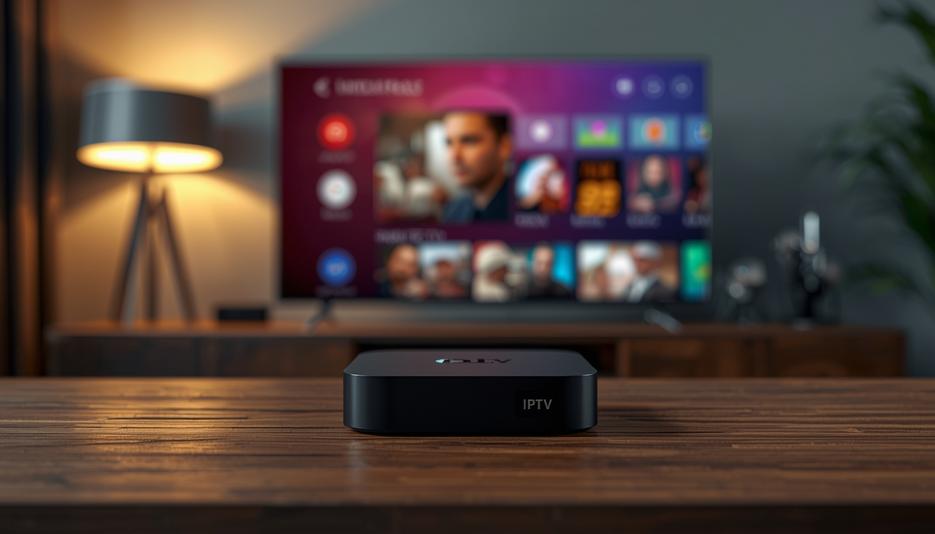
Before installing your IPTV service, you’ll need to properly set up your MAG box. Begin by connecting the device to your television using an HDMI cable for the best quality. Next, connect the MAG box to your internet source – either via Ethernet cable for optimal performance or through Wi-Fi for convenience.
Power on your MAG box and television, then select the appropriate HDMI input on your TV. The initial boot process may take a few minutes, especially on first use. You’ll be presented with a setup wizard that guides you through language selection, time zone configuration, and network setup.
For network configuration, select either wired or wireless connection. If choosing Wi-Fi, you’ll need to select your network and enter the password. The MAG box will test your connection to ensure adequate speed for streaming. Canadian users should aim for at least 25 Mbps download speed for HD content, and 50+ Mbps for 4K streaming.
The final step in initial setup involves configuring display settings. Select the appropriate resolution for your television (typically 1080p for most users, or 4K if supported by both your TV and MAG model). You can also adjust aspect ratio and other display parameters to optimize the viewing experience for your specific television.
Installing IPTV Service on Your MAG Box
After completing the initial setup, you’re ready to install your IPTV service. To begin, access the main menu on your MAG box using the remote control. Navigate to the “System Settings” option, then select “Servers” or “Portal Settings” depending on your MAG box model and firmware version.
In the portal configuration screen, you’ll need to enter the portal URL provided by your IPTV service. This typically looks like “http://provider.domain:port” or may use HTTPS for secure connections. Canadian providers typically provide region-specific servers to ensure optimal streaming performance for local users.
Next, enter your username and password credentials from your subscription. Be careful when entering this information, as it is case-sensitive. Some MAG interfaces have limited navigation options, so take your time to input the details correctly. Most MAG models offer an on-screen keyboard for text entry.
After entering your credentials, select “OK” or “Connect” to save the configuration. Your MAG box will attempt to connect to the IPTV service. This process may take a few moments as it authenticates your account and loads the channel list and service interface. Once connected, you’ll see your provider’s user interface with available channels and content.
Advanced Configuration Options
For users seeking optimal performance, MAG boxes offer several advanced configuration options. One important setting is the buffer size adjustment, which can help with stream stability. Navigate to “System Settings” > “Player Configuration” to access these options. For most Canadian internet connections, a buffer of 3-5 seconds provides a good balance between stability and minimal delay.
Video output settings can be fine-tuned beyond the basic setup. If you experience display issues, adjust the resolution, refresh rate, and color depth settings under “Video” in the system menu. Users with 4K televisions should ensure both their MAG model supports 4K output and that the HDMI cable used is HDMI 2.0 or higher to support this resolution.
Network configuration can be optimized beyond the basics as well. For users experiencing buffering issues, prioritizing your MAG box in your router’s QoS (Quality of Service) settings can make a significant difference. Additionally, some MAG models allow you to adjust DNS settings, which can improve connection reliability to certain IPTV providers.
Time synchronization is crucial for EPG (Electronic Program Guide) accuracy. Ensure your time zone and time settings are correctly configured under “System Settings” > “Date/Time.” Many Canadian users need to select the appropriate time zone (EST, CST, MST, or PST depending on province) and enable automatic time synchronization for accurate program listings.
Troubleshooting Common MAG Box Issues

Even with proper setup, you may encounter issues with your MAG box IPTV service. One common problem is connection errors when trying to access your IPTV portal. First, verify your internet connection is working by checking other devices. Then confirm your portal URL, username, and password are correctly entered without typos. If the problem persists, your provider’s server might be experiencing issues.
Buffering during playback is another frequent complaint. This typically indicates network bandwidth limitations. Try connecting via Ethernet instead of Wi-Fi if possible. Close other devices using your internet connection during peak viewing times. If problems persist, consider lowering the stream quality in your MAG box settings or upgrading your internet package.
EPG (Electronic Program Guide) issues may occur, where program information appears incorrect or missing. This can often be resolved by restarting your MAG box or by manually updating the EPG through the settings menu. Some Canadian IPTV services offer region-specific EPG data that requires separate configuration.
If your MAG box becomes unresponsive or freezes frequently, performing a factory reset might be necessary. This can usually be initiated through the settings menu or by pressing a specific button combination on your remote (check your model’s manual for details). Note that this will erase all your settings, requiring you to reconfigure your device from scratch.
MAG Box vs. Other IPTV Solutions
When comparing MAG boxes to other IPTV solutions available in Canada, several key differences emerge. Unlike Android-based devices, MAG boxes don’t support general apps but focus exclusively on IPTV functionality. This specialization results in better streaming performance and stability for live TV content.
Fire Sticks and Android TV boxes offer more flexibility with additional applications and services, but often deliver less consistent IPTV performance. MAG boxes provide a traditional TV-like experience with channel surfing and program guides that feel familiar to cable subscribers making the switch to IPTV.
For technical users, solutions like Kodi with IPTV add-ons offer maximum customization but require more setup and maintenance. MAG boxes provide a plug-and-play solution with minimal configuration needed after initial setup. This makes them ideal for less tech-savvy users or households where multiple family members need access.
Security considerations also differentiate these options. MAG boxes run a closed system that’s less vulnerable to malware compared to Android-based alternatives. For Canadian users concerned about privacy and security, this can be an important factor, especially when accessing subscription content that requires account credentials.
Frequently Asked Questions
Can I use multiple IPTV services on one MAG box?
Most MAG boxes support only one active portal connection at a time. To switch between different IPTV services, you’ll need to manually change the portal URL and credentials in your settings menu. Some newer models offer portal switching features that simplify this process.
Do I need a VPN with my MAG box in Canada?
While not strictly necessary, using a VPN can provide additional privacy and potentially resolve issues with geo-restricted content. MAG boxes don’t have built-in VPN functionality, so you’ll need to configure this at your router level for protection.
How often should I update my MAG box firmware?
Check for firmware updates every few months. Newer firmware versions often include performance improvements and security patches. Updates can be performed through the system settings menu when connected to the internet.
Can I record content with my MAG box?
Recording capabilities depend on your specific MAG model. Some models support external USB storage for recording, while others don’t offer this feature. Check your device specifications or contact the manufacturer for information specific to your model.
What should I do if my MAG box becomes blocked?
If your MAG box displays a message about being blocked, contact your IPTV service provider. This typically indicates either an account issue or that the provider has detected unusual usage patterns. Never share your subscription credentials, as this can lead to account blocks.
Conclusion
Installing IPTV on a MAG box provides Canadian users with a reliable, purpose-built solution for streaming content. The process involves connecting the device, configuring network settings, and entering portal credentials provided by your IPTV service. While the initial setup may seem technical, the resulting user experience offers simplicity and stability.
The key advantages of MAG boxes – dedicated hardware, optimized performance, and straightforward operation – make them worth the initial configuration effort. When properly set up, they deliver a television experience that rivals or exceeds traditional cable services, with access to international content not typically available through conventional Canadian providers.
Remember that the quality of your IPTV experience depends not only on proper MAG box setup but also on choosing a reliable service provider and having adequate internet bandwidth. By following the steps in this guide and implementing the troubleshooting techniques when needed, you’ll be well-positioned to enjoy uninterrupted streaming on your MAG box for years to come.
